7. Extensions, shop and furniture packs
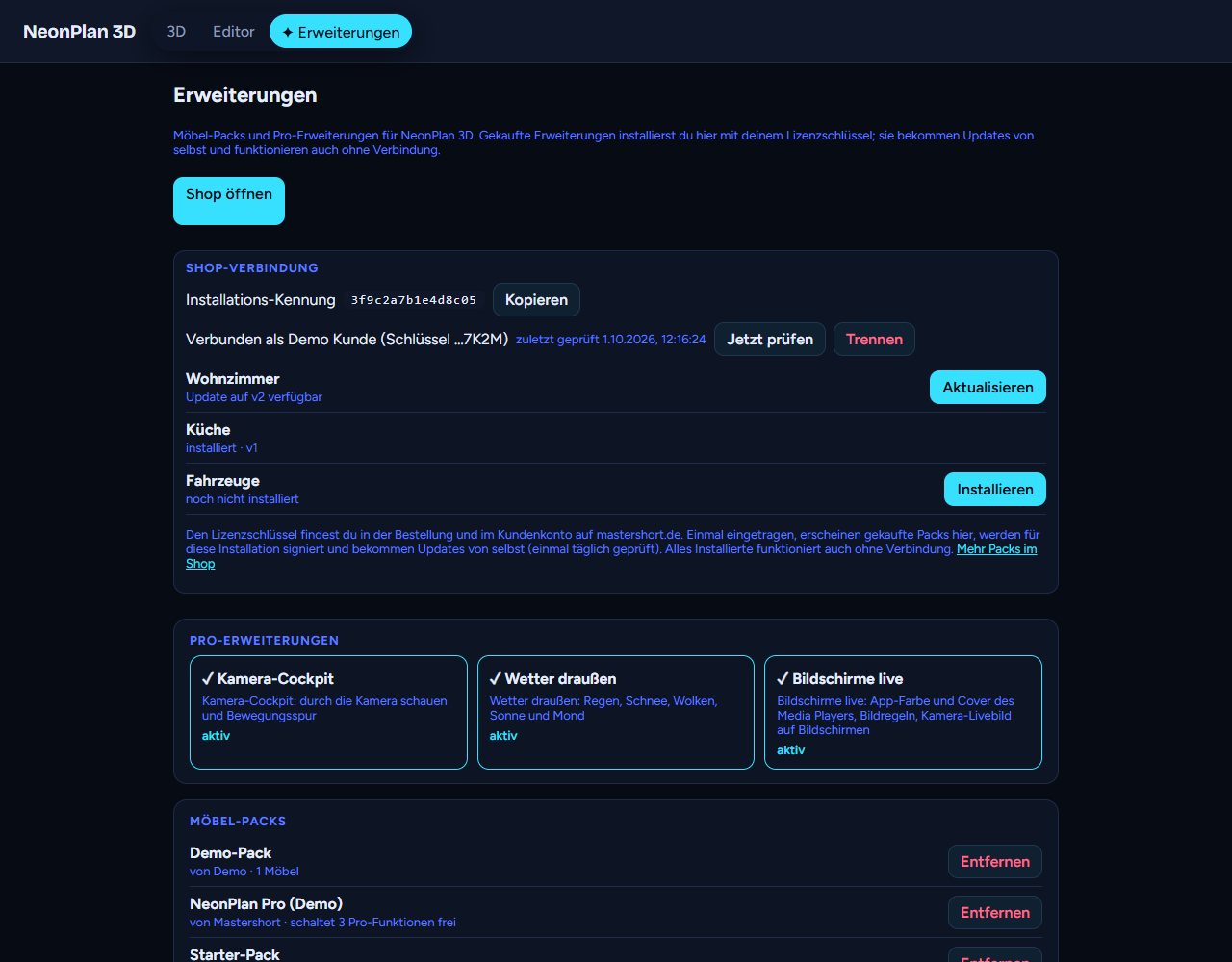
The ✦ Extensions tab gathers everything you can add to NeonPlan 3D.
7.1 Shop connection
With your first purchase at mastershort.de you get a licence key in the form NP-XXXX-XXXX-XXXX-XXXX. It is in the order e-mail and in your customer account.
- Open Extensions.
- Enter the key under Shop connection and press Activate.
- Your purchases appear with Install. A tap fetches the pack from the shop, signed for exactly this installation.
After that:
- Updates come by themselves. Once a day NeonPlan 3D asks whether there are new purchases or newer versions and installs them. Check now asks right away.
- Everything keeps working offline. Installed packs are checked locally, the shop is never needed for that.
- Disconnect removes the key. Installed packs stay.
- Pack updates: When a bought pack grows, the page shows once what was added.
- New in the shop: With a shop connection the page shows the packs and Pro add-ons you do not have yet at the top, with NEW for fresh ones. A badge on the ✦ Extensions tab shows what is waiting: "2 ready" for bought or given packs that can be installed or updated, "3 new" for new offers in the shop (only once you have bought something; the offers are always here anyway). When a pack newly belongs to you (bought or a gift), Home Assistant also announces it once under Notifications (several packs at once in one notice); it is dismissed when the pack is installed. Without a key NeonPlan 3D never contacts the shop.
- Loyalty discount: With your first purchase you get a personal discount code for every further pack and Pro add-on (not for bundles). It is in the order e-mail, in your account and at the top under New in the shop; tapping an offer puts it straight into the cart.
- 4 furniture packs as a gift: With a shop connection, if you have not subscribed to the NeonPlan newsletter yet, a small box shows here. After signing up and confirming by mail, the taster packs living room, kitchen, bedroom and bathroom (4 items each) appear under Extensions by themselves – at the next daily check at the latest, at once with Check now. Don't show again hides the box on this device.
Several installations: A key is connected to at most three installations at a time. If you move to new hardware, simply connect the new installation, the oldest one then drops out. Up to five new connections are possible per year. The Installation id at the top is an anonymous fingerprint of your installation.
7.2 Pro add-ons
The middle row of tiles shows the Pro add-ons. Active ones carry a ✓, locked ones a 🔒 and the link "See in the shop" – with a shop connection with the price.
Fits your home (new in 3.4): add-ons that fit your Home Assistant come first with a small sign – Camera Cockpit with cameras ("📷 3"), Energy Pro with a solar or grid sensor, Sound & Cinema with media players, Car Pro with a wallbox or a parking spot, Weather Outside with a weather entity, Household Pro with waste collection sensors. Only your browser checks this; nothing is sent.
Without a licence key the page shows at the top what a free customer account brings (the fun packs, the free modules and, with the newsletter, four taster packs), with a button to create one. You don't have to buy anything.
7.3 Furniture packs
| Pack | Contents |
|---|---|
| Living room | Sofas, wall units, fireplaces, media furniture and more |
| Kitchen | Base units, tall units, islands, appliances |
| Bedroom | Beds, wardrobes, chests of drawers, nightstands |
| Bathroom | Washbasins, showers, bathtubs, WCs |
| Kids, Office & gaming, Garden & terrace, Garage & workshop, Fitness, Smart home & tech | Furniture and devices for each area |
| Digital Picture Frames | frames with a living face: calendar, shopping list, family board, people, camera, music, photo slideshow, weather – chapter 6.9 |
| Vehicles | Cars, vans, motorbikes and more for parking spots |
| Stairs & railings (16) | Straight, L- and U-shaped stairs, straight stairs open below, with winders or with a corner landing at the foot, open U-stairs with two quarter turns, spiral stairs, space-saver stairs, outdoor steps, landing, railings in metal, glass and wood |
| Home cinema & hi-fi | Screen, projector, speakers, subwoofer, AV receiver, turntable, cinema seats, smart speakers and smart displays – devices glow while playing; the roll-down screen goes up and down with its motor's cover (run time, position sensor and reverse direction as for the curtain) |
| Utility & building services | Boiler, heat pump, buffer tank, ventilation, meter cabinet, water softener, chest freezer, ironing station |
| Pets | Cat tree, dog bed, feeder, water fountain, litter box, cages, aquarium and terrarium with light |
| Homelab & Workshop | Smart home server, single-board computer cluster, rack switch, UPS, server tower, 10-inch mini rack, radio stick, printer shelf with three 3D printers, filament dryer, laser engraver, soldering station, workbench with pegboard, tool battery charger – with live parts (from 3.4, see 4.8) |
| Architecture & fit-out | Columns, beams, chimney, fireplace, glass partition, sliding wall, light cove, LED niche, platform, motorised curtain (opens with its cover, to both sides or, under Opens to, only to the left or right; under Motor (cover) also run time, a live position sensor as for blinds and Reverse direction) |
Devices in packs have a small glowing part (display, status LED): linked to a media player, a switch or a light it lights up while the device runs; an aquarium glows in its light's colour.
At the bottom of the page a bar sums up your installed packs (furniture packs with their number of items, and add-ons); Show the list opens the list with Remove. The shop connection sums up your purchases the same way – installed, updates, not installed yet – with Install/update all. Below is Import furniture packs … for pack files: free sampler packs from the newsletter, downloads from the website or installations without internet. You can pick several files at once. The Modules section below lists the installed modules (code from the shop, see 5.10) with Import a module … and Remove.
Good to know:
- Packs are digitally signed. Only packs from the publisher can be imported, changed files are refused.
- If you remove a pack, its furniture stays in the plan as plain boxes. Import it again and it is back, with all its links.
- A newer version of a pack replaces the old one without losing anything in the plan.
7.4 Fun packs
Fun packs are free extras just for fun – for everyone with a customer account at mastershort.de. No purchase is needed:
- With a shop connection they are already in your account. Under Extensions they are among your packs with Install; Home Assistant also announces new fun packs once under Notifications.
- Without an account you create one for free: 🎁 Create a free customer account in the editor under ⚙ Settings → 🎈 Fun packs (or in the notice in the 3D view), confirm your e-mail, paste the licence key from the mail under Shop connection. Then the fun packs show up under Extensions to install – and from then on new packs too, right in the app.
The fun packs are set in the editor under ⚙ Settings → 🎈 Fun packs (new; they used to be under Extensions). There you switch them on and off and set up the pets, for instance; under Extensions a button Open the fun pack settings leads straight there.
Pets: a cat, a rabbit or a dog – as a dachshund, pug, terrier, labrador or shepherd – lives in your 3D house. + Add a pet sets one up: kind, breed (for dogs), name, fur and the floor it starts on. Show the pets switches all of them on and off; in the dashboard card the option Show the pets (YAML pets: false) leaves them out of that card, e.g. on the wall tablet.
- The pets walk through the doors from room to room and up and down the stairs – they get around the whole house. A door whose contact reports it shut stops them; doors without a sensor count as open.
- They walk around furniture instead of through it – round the sofa, table and cupboard; rugs, lamps and what hangs on a wall are no obstacle. Onto their place on the sofa or bed they hop at the end.
- They rest at their favourite places: a cat walks up to a sofa, an armchair or a bed and jumps on from the front, a dog lies down in front of it. From the Pets pack, cats like the cat bed, cave and scratching tree, dogs the dog bed, basket and kennel; they drop by the bowls, the feeder and the water fountain.
- At night (the sun in Home Assistant has set) they sleep curled up, with a little "z Z".
- Colourful fish swim in the Pets pack's aquariums.
- They are only drawn while one moves – resting, they cost nothing, even on old wall tablets.
Halloween: 13 decorations in the furniture library under Fun pack: Halloween – a jack-o'-lantern, a small pumpkin, a pumpkin trio, a cobweb (for the corner under the ceiling), a bat garland, two gravestones, a skeleton, a witch's cauldron, a candelabra, orange string lights, a ghost figure and a witch's broom. Pumpkin, cauldron and candles glow when you link a light. A little ghost floats through the house now and then – right through the walls, more often at night. Let the ghost float under 🎈 Fun packs switches it off; in the dashboard card the option Show the Halloween ghost (YAML ghost: false) leaves it out of that card. The ghost, too, is only drawn while it is on its way.
Winter & Christmas (new): 11 decorations in the furniture library under Fun pack: Winter & Christmas – a Christmas tree with fairy lights (for the plug), a small Christmas tree, an Advent wreath that lights its candles by date (one on the first Sunday of Advent, all four on the fourth), a glowing window star, a candle arch, a light-up reindeer for the garden, a snowman, a pile of presents, warm white and colourful string lights and a poinsettia. What glows glows with a linked light or plug. With Only show while … (see 4.8) the decorations come back every December by themselves, e.g. while a calendar or a "Christmas time" helper is on. Under ⚙ Settings → 🎈 Fun packs:
- Fairy lights along the eaves: bulbs along the roof's edge. Shine with links them to your real outdoor lights; without a choice they shine automatically in the evening from the first Sunday of Advent to 6 January. Pick Colourful instead of warm white and Gables and ridge too (the whole roof in light) as you like.
- Snow: when the weather entity reports snow, snow lies on the roof and the lawn. It stays while it freezes and melts within a few hours above zero.
- Firework: on New Year's Eve a neon firework rises over the house at midnight (23:59 to 0:10).
All of it runs on old wall tablets too: the fairy lights and the snow cost next to nothing, the firework is only drawn during those eleven minutes.
7.5 Modules
A module is a pack that carries code: NeonPlan loads it and runs it in the house – checked, signed and bound to your installation like a furniture pack. Modules come only from the shop (with a customer account, many of them free); their code is not in the public repository.
How a module works – step by step:
- Get it: put the module into the shop's basket (free ones too), order, done. It then lies in your customer account like every pack.
- Install it: with NeonPlan connected to the shop (7.1) it stands under Extensions → Install/update all – one tap. Without the connection download the
.fp3dpackfile from the account and import it: ⚙ Settings → 🧩 Modules → Import a module … or here in the Modules section. - Approve it (since 1.24): a module runs only once an administrator has seen and approved its code. The Modules section then says "waits for your approval" – View code & approve shows the publisher, version, size, fingerprint and the whole code; Approve starts exactly this code, without a restart.
- See it: the module stands in both lists as "Module by Mastershort · v2". What it does is in its shop description; the sentences of a voice module show at once under 🎙 Voice control → What NeonPlan understands, a module's warnings in the warning bar, its cards over the house.
- Updates: a new release is fetched by the daily shop check by itself; without the connection import the new file. New code never runs by itself: the update waits beside the running release ("Update to v4 waits for your approval") until you confirm it with View update & approve. Until then the old release keeps running. Since 2.0.6 the shop list shows such a waiting update with the View update & approve button too, instead of offering it for updating again. Furniture and feature packs without code update as before.
- Remove: Remove in the list, like a pack. Your plan stays untouched.
Security: a module runs only with a valid signature and on the installation it was bought for. You can read the code in the file (it is not obfuscated) but not pass it on – the Elastic License 2.0 applies.
Why modules? The Pro add-ons move over to this form one by one (on the extensions page they already stand under Modules, "becomes a module"). Nothing changes in how you use them. A lot changes in how they are built: each extension gets its updates through the shop without waiting for the next NeonPlan release; several extensions can be built and tested at once, each with its own supporter beta; and the core stays small and fast – a wall tablet only loads what it uses.
The house answers is free for everyone with a customer account: pick it up in the shop, then Install all or import the file (step 2). Then open ⚙ Settings → 🎙 Voice control: under "What NeonPlan understands" every question is listed. Try "What is open?", "Good morning", "Good night", "What is the weather like?" – at the microphone or in the Assist dialog. Speaking needs text-to-speech in the Assist pipeline (Settings → Voice assistants → Text-to-speech).
Modules today:
| Module | What it does | Price |
|---|---|---|
| The house answers | answers spoken questions – "What is open?", "What is the weather like?", "Good morning" … (5.10) | free |
| Announcements (from NeonPlan 2.0.7) | Tap a room, 📢 Announcement, tap "Dinner is ready!" – and the speaker in that room says it. Ready sentences (in ⚙ Settings → Announcements: ✕ takes one out, your own are added below, "Bring back the ready sentences" restores them), your own words, or spoken into the 🎙 microphone (needs HTTPS and a voice pipeline with speech-to-text, like the voice control). From the central menu to all rooms, to one floor or only where someone is (locating, presence and motion sensors). In the room's form (editor) every room has a 🌙 quiet time (a kids' room from 8 pm until 7 am, for example): announcements to several rooms then leave it out, an announcement to this room alone still goes out. There are also the room's own sentences, shown first in that room. Words you typed lately come back as ↻ to send again. Which speaker talks: the one chosen in the room's form under 📢 Announcements through, else a speaker placed in the room on the plan – only when none is placed there, one of the room's area (never a TV or an unreachable device on its own), else the default speaker from ⚙ Settings. An outdoor area with a Home Assistant area (a terrace, say) counts as a room since 2.0.11: its speaker gets announcements and its 📢 button. One speaker talks per room – with two in a room, choose which one in the room's form. Echos (Alexa Media Player, or since 2.0.11 Home Assistant's own Alexa Devices integration) and voice satellites like the Home Assistant Voice PE make a real announcement with a chime; other speakers talk through Home Assistant's text-to-speech (TTS), with chime_tts with a chime too; speakers that can announce (Sonos, for example) lower their music for it and play on after. The volume stays as it is. The speaker lights up in the plan for a moment, and in the 3D view 🔊 over it shows where it is talking. With Also show 📢 right in the room (⚙ Settings → Announcements) a 📢 button floats over every room's speaker in the floor's 3D view – a tap opens the sentences at once. From automations (from NeonPlan 2.0.9): the action NeonPlan 3D: Announcement (neonplan3d.announce) says a message with the same settings – when the doorbell rings, say –, also with no NeonPlan page open; without a room to every room, with Rooms to those named, with Floor to one floor; several rooms leave out those in their quiet time. With On NeonPlan screens every open NeonPlan screen speaks the message itself – with a chime – and shows it big; with Screens only those with these screen names. So an old wall tablet becomes an announcement speaker too. This needs a voice pipeline with text-to-speech in Home Assistant; browsers play sound only after a first tap on the page – in Fully Kiosk switch on Autoplay Audio under Web Content Settings. A wall tablet with Fully Kiosk can be a speaker itself: choose the Fully Kiosk integration's media player in the room form under 📢 Announcements through |
3.90 €, in the Supporter Pass |
| Window watch | warns when a window has been open in the cold (below 12 °C outside) for more than 20 minutes or the heating runs with a window open (10 minutes): the room pulses, the warning bar names the window and the time; "Which windows have been open too long?" visits them. Quiet at night (from release 3): create a helper (toggle) input_boolean.window_watch_quiet in Home Assistant, and it does not warn while that is on – turned on by an automation at night or when the blinds are down |
free |