6. Pro add-ons
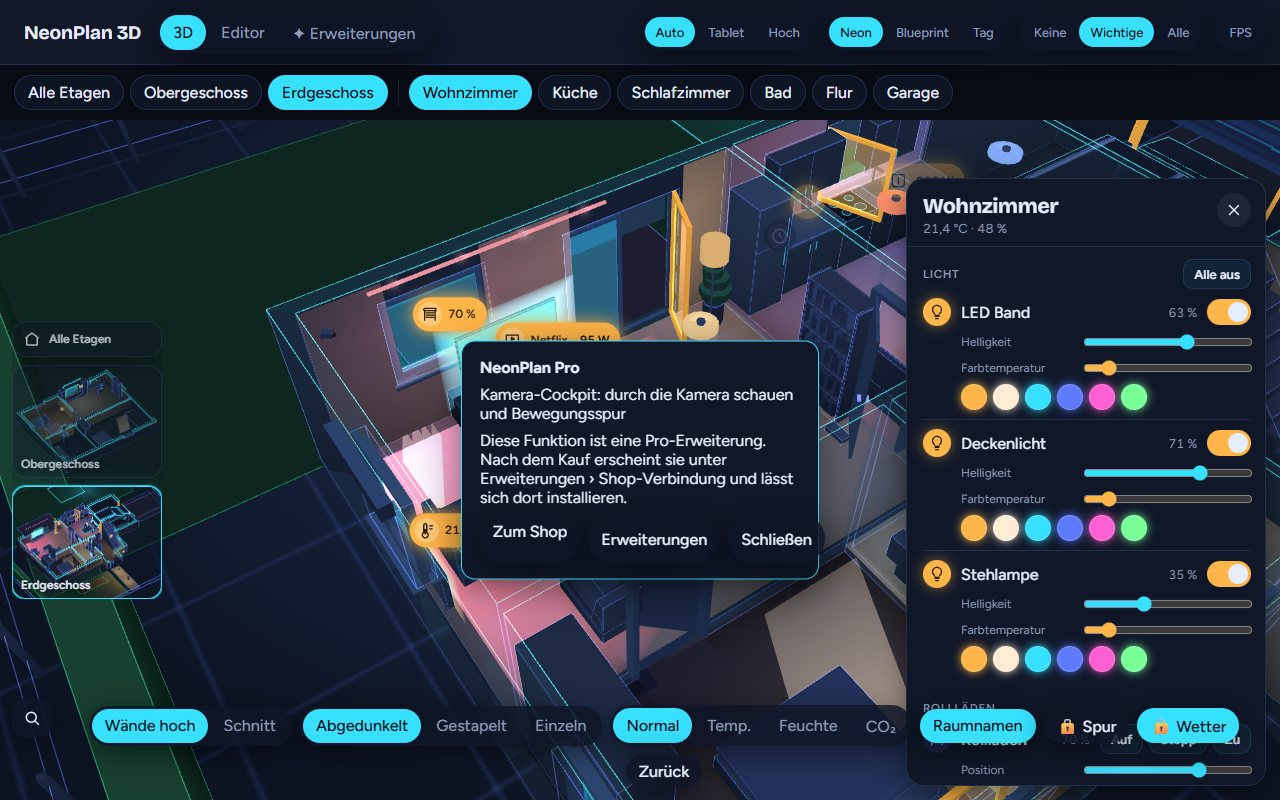
Pro add-ons are paid extra features, sold singly in the shop. Without an add-on, the switches show a 🔒 and a hint leads to the shop. How to install them is in chapter 7.
6.1 Camera cockpit
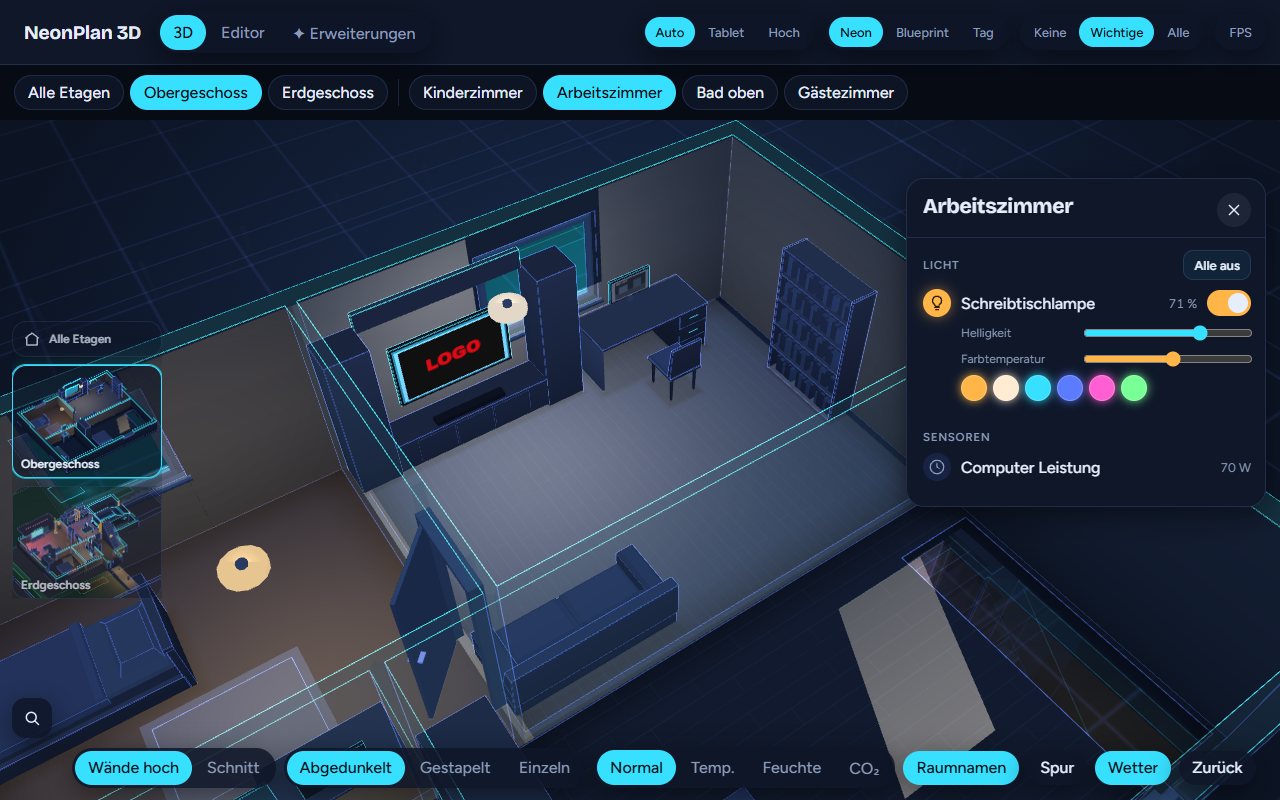
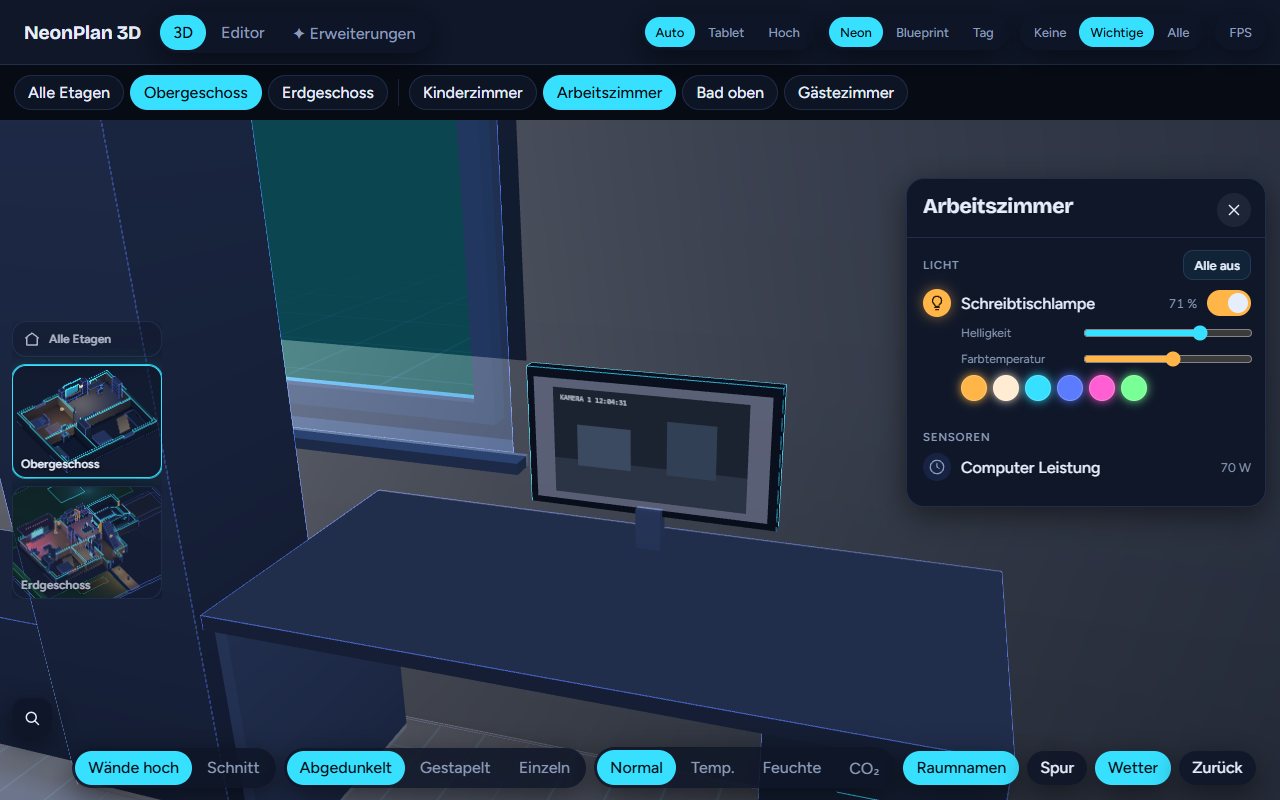
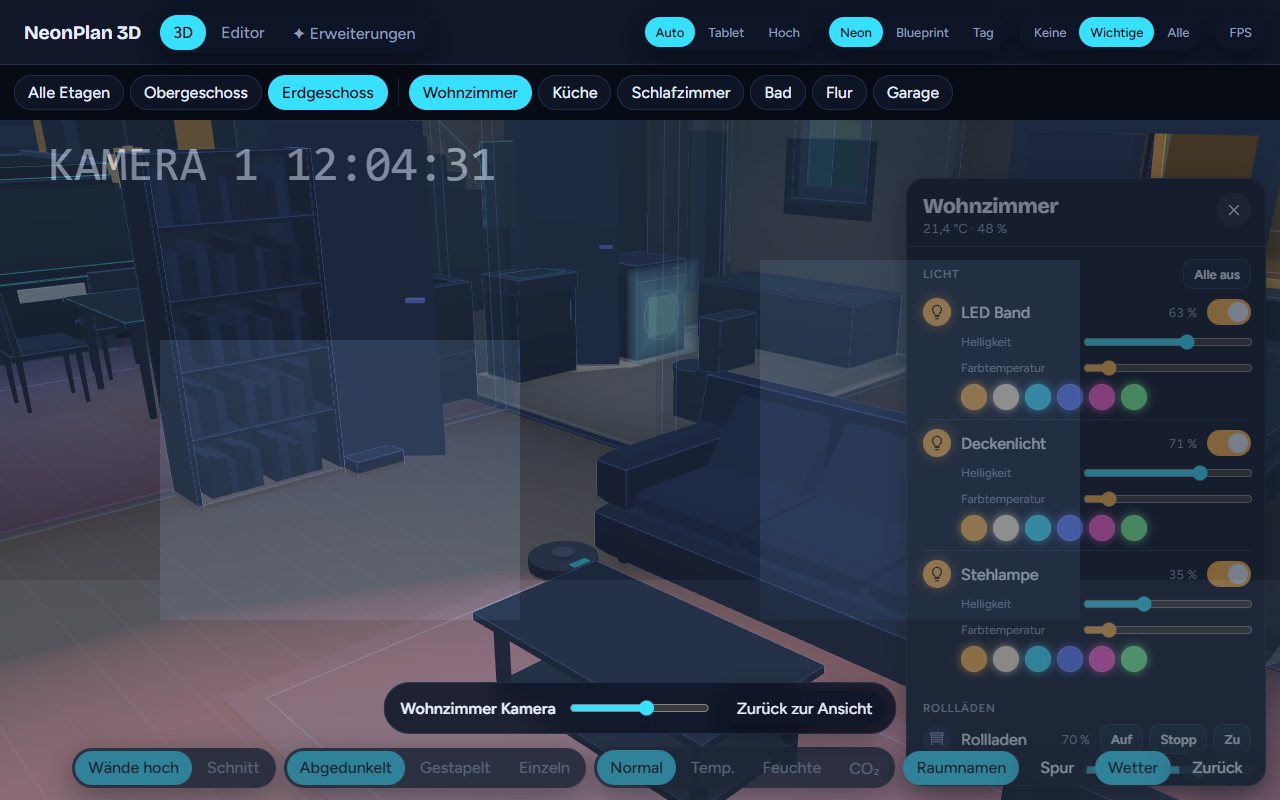
Look through the camera: The snapshot menu of a camera and the room panel offer "Look through the camera". The 3D view flies to the camera's spot and looks along its direction, with the live picture blended over the scene. The slider at the bottom sets the blend, "Back to the view" flies back. If the picture does not line up, correct the camera's rotation and tilt in the editor.
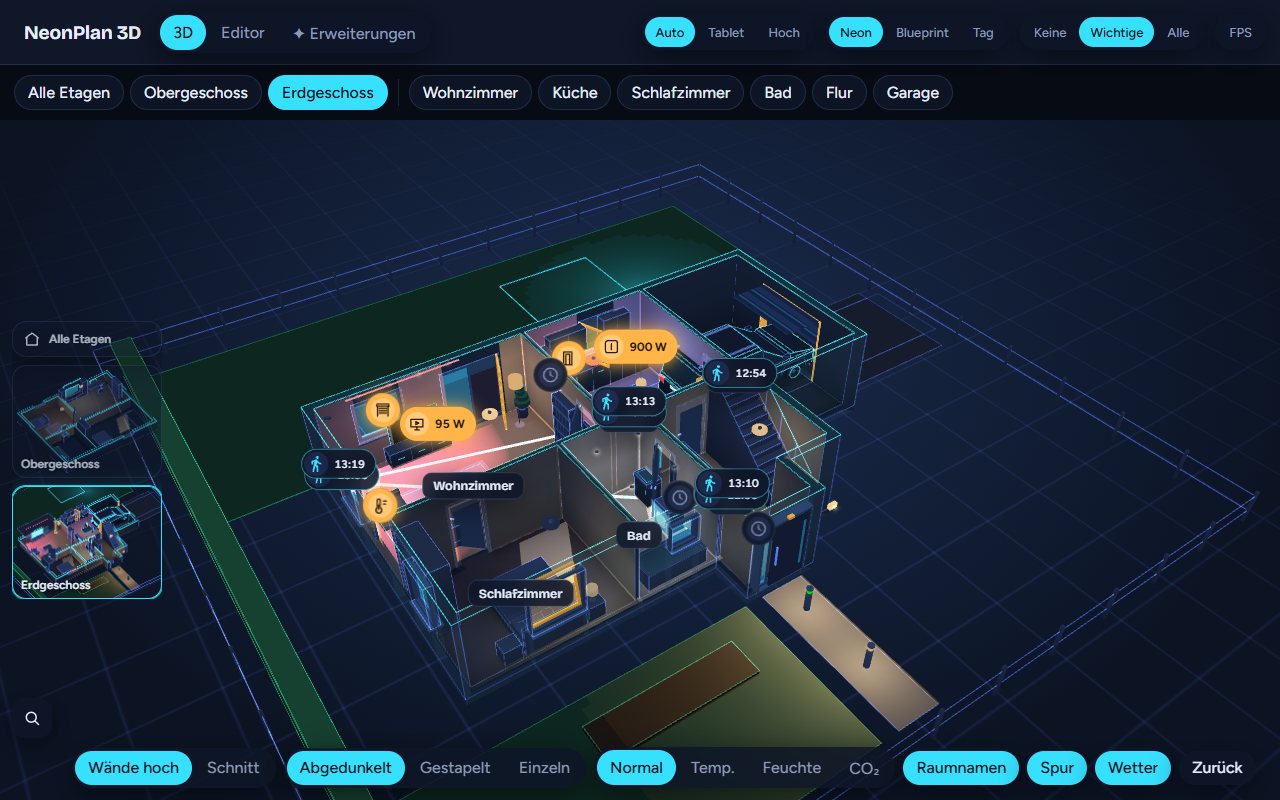
Motion trail: The Trail switch shows where motion was reported in the last 30 minutes: glowing spots with the time, joined in order, older ones fading. Sources are motion, presence and occupancy sensors. Sensors placed in the plan sit at their spot, camera sensors at the camera, all others in the middle of their room. The data comes from Home Assistant's history and reloads every minute.
6.2 Weather outside
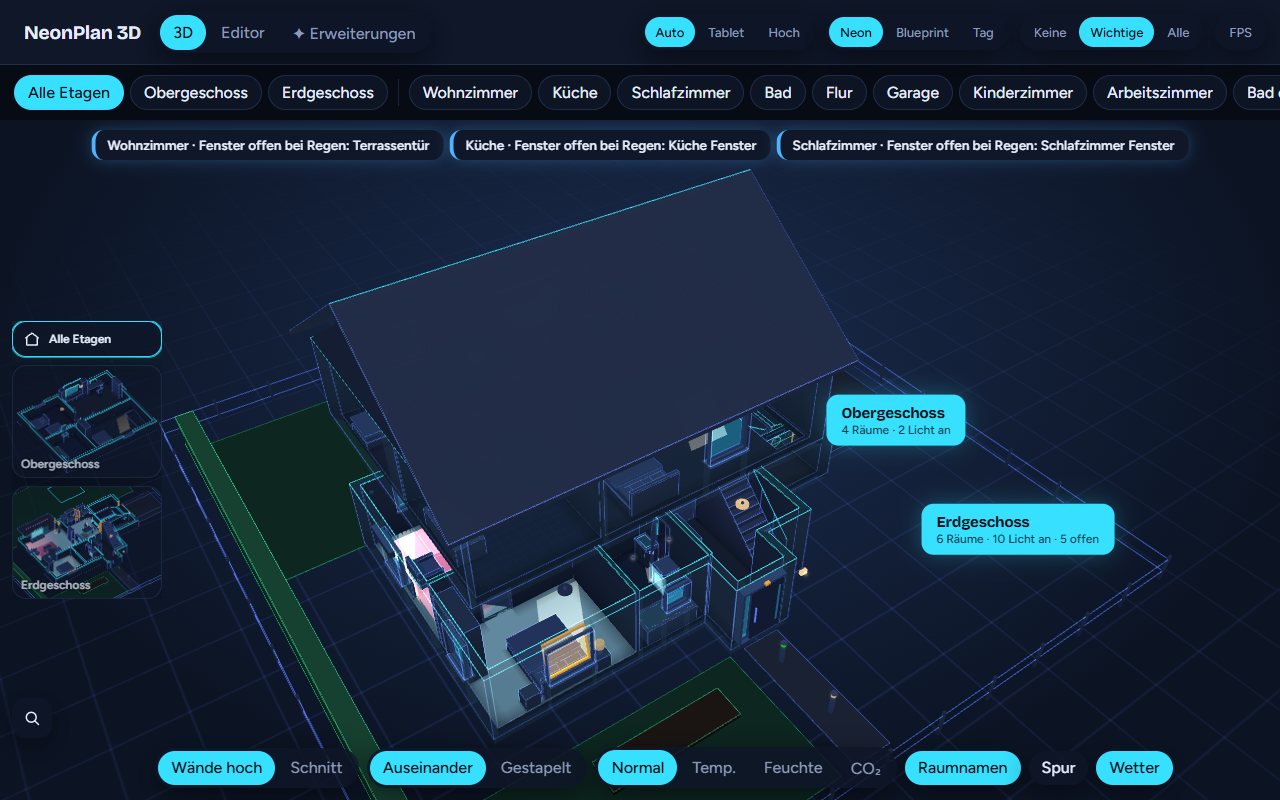
The weather around the house follows your weather entity:
| State | In 3D |
|---|---|
| rainy, pouring, hail | Rain, with clouds |
| snowy, snowy-rainy | Snow, both for sleet |
| lightning, lightning-rainy | Lightning, with rain for the second |
| fog | Fog, only if switched on |
| cloudy, partlycloudy | Clouds dim the sky and the sunlight |
| windy | Wind drives rain and snow at an angle |
| sunny, clear-night | Sun by day, moon by night |
If the entity provides cloud_coverage and wind_speed, NeonPlan 3D uses them.
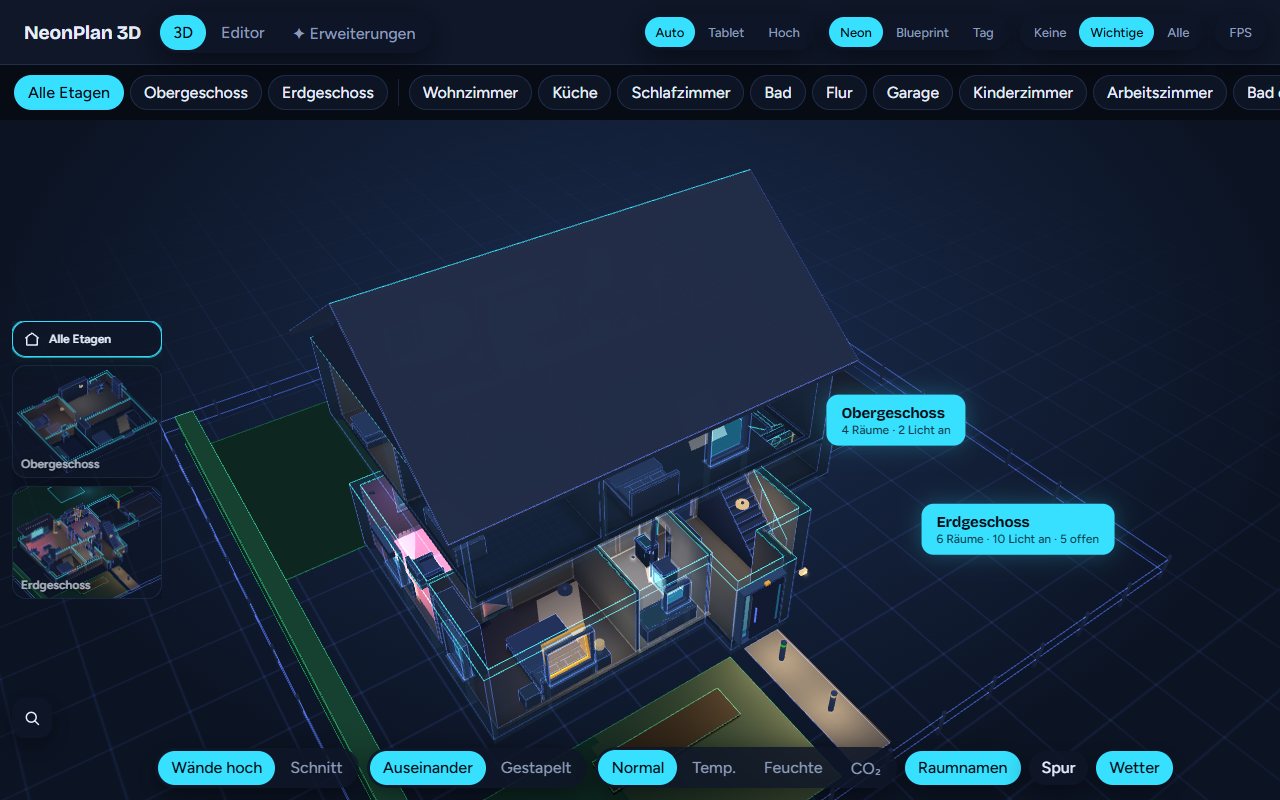
Settings in the editor: Weather entity picks the entity, Weather effects in 3D switches single effects off. Fog starts off because it greys the whole scene. At the Tablet quality level only the dimming by clouds remains.
6.3 Live screens
Without this add-on a TV only glows while it is on. With it:
- TVs and monitors show the colour of the running app and the media player's artwork.
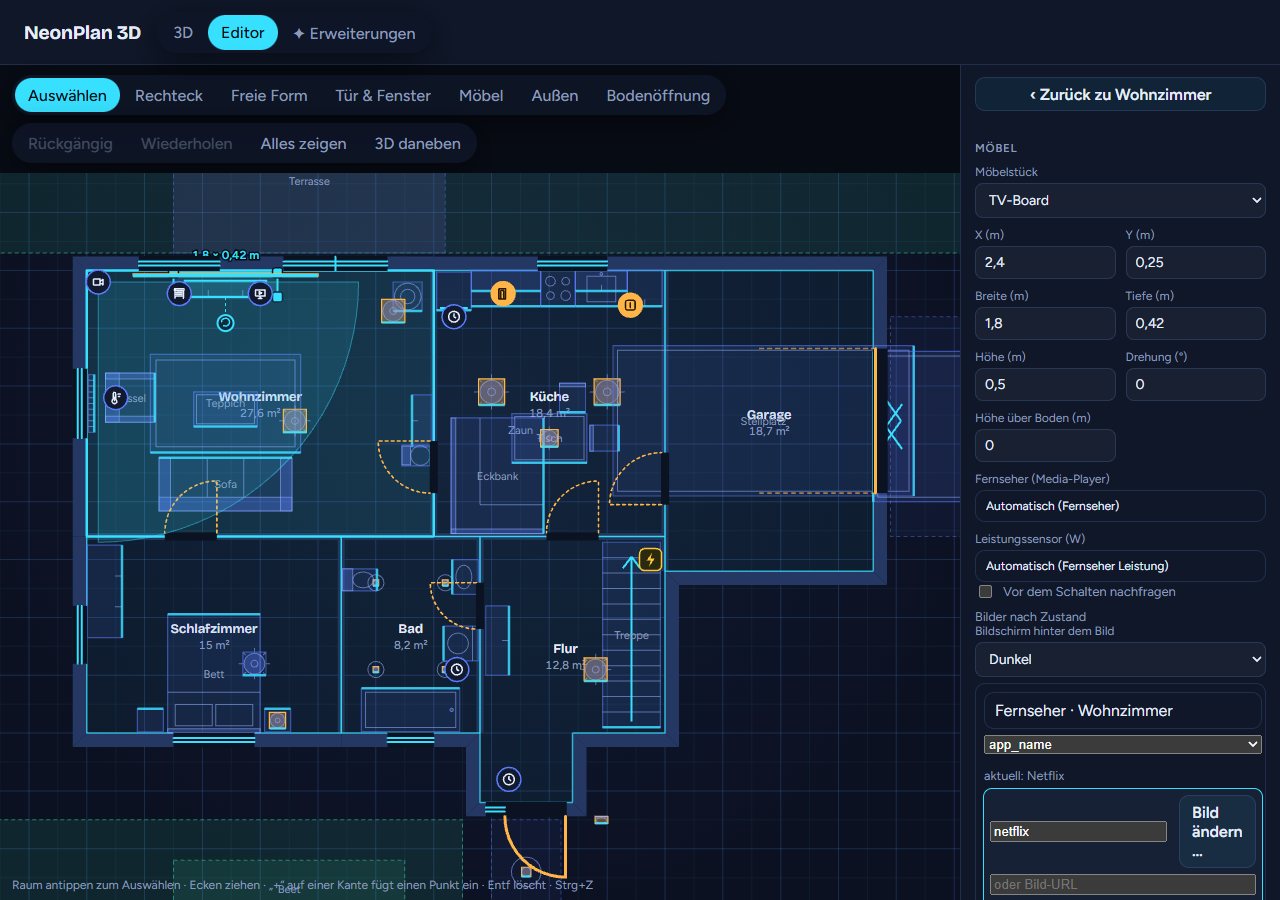
- Pictures by state: Add rules to a screen item. When an entity is in a certain state or an attribute has a value, the screen shows a picture. Example: the TV's attribute
app_namecontains "netflix", so the Netflix logo appears. A value matches when it is equal or contained in the text,*always matches. The first matching rule wins. - A picture can be an upload, scaled to 512 pixels, a picture URL or a camera. A camera picture refreshes every 5 seconds while it is visible.
- Screen behind the picture: dark or white, depending on whether the logo is light or dark.
- "✓ matches now" on a rule shows which picture is visible right now. Uploaded pictures can be reused on other screens.