10. Backup and moving
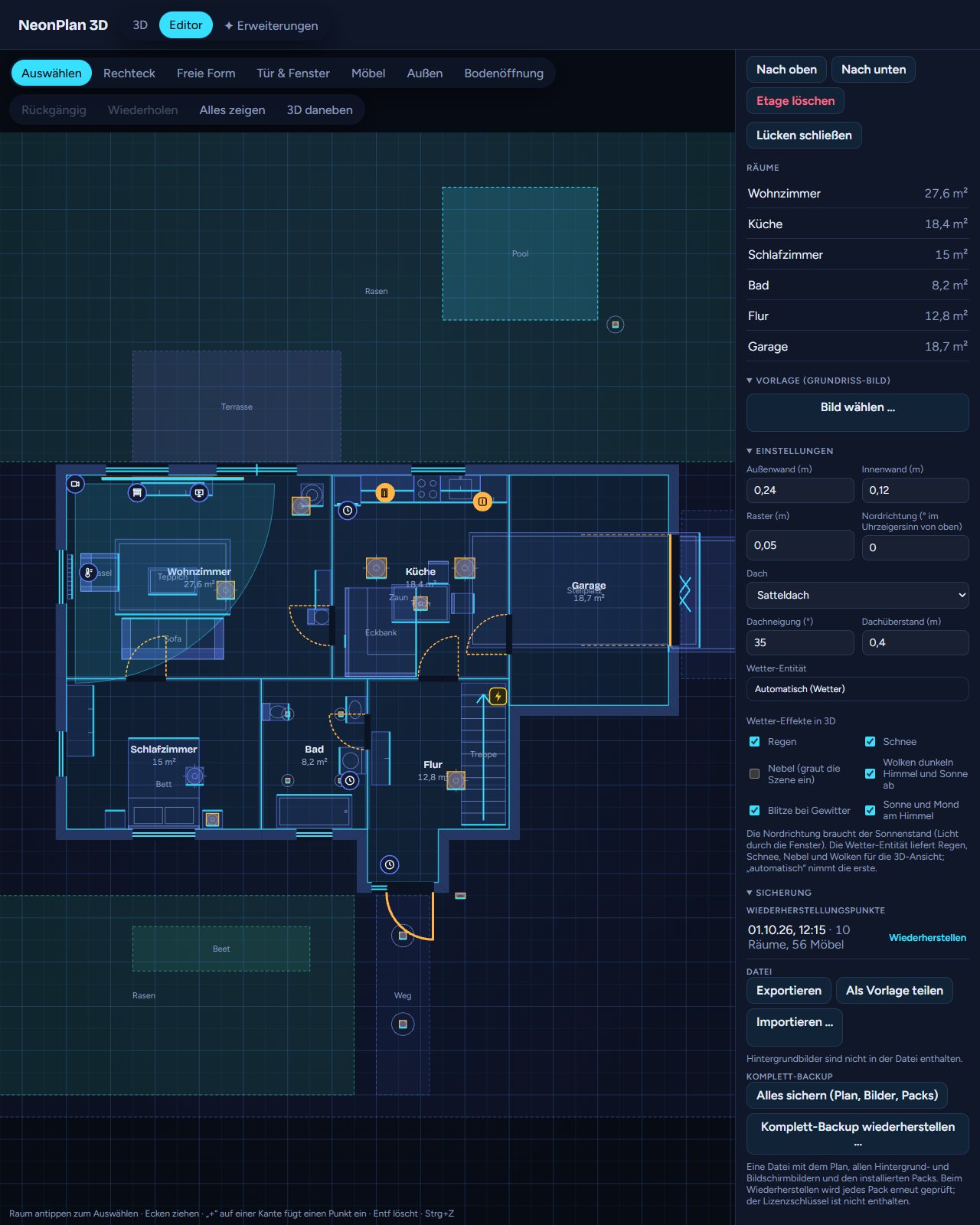
Under Backup in the editor:
- Restore points are kept at most every 10 minutes while you edit, the last 20 stay – with several floor plans, each its own. Restore brings back a state, the current one is kept as a restore point itself.
- Export saves the plan as a file, Import … loads such a file.
- Share as template exports without areas, devices, sensors and pictures. Good for passing a floor plan on.
- 🖨 Print in 3D (since 2.2, for Supporter-Pass holders): downloads the plan like Export and opens NeonPlan Print – upload the file there and get your house as 3D-print files: floors you lift off, the roof as a lid, a base plate with your name. Unlock it with your supporter code (under Extensions, where Open NeonPlan Print copies it for you). Free during the beta until 30 November 2026, for private, non-commercial use with your own homes. A small "New" dot on Extensions points supporters to it once.
- Full backup: Back up everything (plan, pictures, packs) saves one file with every floor plan, every background and screen picture and the installed packs. Restore a full backup … brings it back into the same or another installation. Every pack is checked again. Packs signed for another installation are fetched there again through the shop connection. The licence key is not in the file.
- Two devices, one plan (since 3.1.1): every save knows which state of the plan it was made on. If another device saved meanwhile – the PC, say, while the phone slept in the background overnight – NeonPlan does not write the old state over it: you see the newer plan, and your change waits at the top with Restore and save or Discard. An app coming back from the background loads the plan again.
Home Assistant's own backup includes NeonPlan 3D completely as well.
From other programs: the import page (https://neonplan3d.mastershort.de/import/, also under Backup → To the import page) turns plans of other programs into a NeonPlan file: Sweet Home 3D (.sh3d), iPhone/iPad LiDAR scans (RoomPlan JSON), CAD drawings (.dxf), 3D models from Blender, SketchUp & co. (.glb, .gltf, .obj, .stl), Floorplanner and Valetudo robot vacuum maps. It shows a preview with rooms, doors, windows and furniture, lets you rename rooms and, depending on the format, set the unit, the layers or the floor levels; the file stays on your computer. Load the downloaded file here with Import …. If you would rather let an AI write the plan, the template is in docs/ai-import.md; the import page checks and repairs the result.